MINI-COURSE · 8 SHORT VIDEO LESSONS · LESSON 1 FREE
Teach on Zoom, simply.
For course creators who have the slides, the students and the fancy equipment, and just want Zoom to behave.
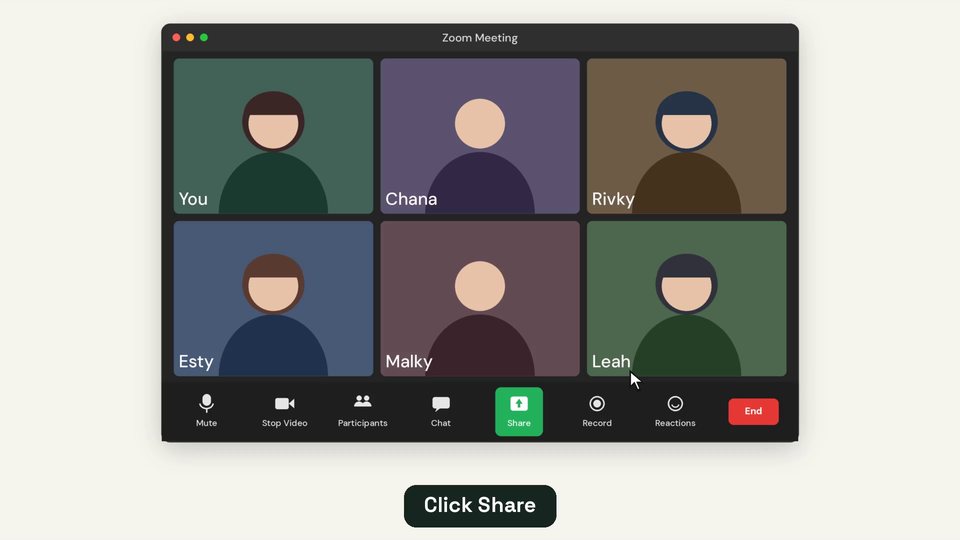
Share only your slides. Put your face next to them, big and clear. See your students while you teach, mute in a second, and keep their faces out of the replay. Then record, edit and share the lesson. Each lesson is a short animated video (under a minute) that shows exactly where to click, with captions.
- Screen sharing
- Presenter layouts
- Shortcuts
- Cloud recording
- Editing
- Camera & mic
No problem, nothing was charged. You can buy whenever you're ready.
FREE PREVIEW
Watch lesson 1 free
See exactly how the lessons work before you buy: a short animated video that zooms in on where to click.
THE LESSONS
8 lessons, about 5 minutes in total
Every lesson zooms in on exactly where to click in Zoom, step by step. Watch them in order, or jump straight to the one you need before tonight's class.
1. Share only your slides Free
Keep your email, tabs and desktop private. Share the slides window, not your whole screen.
2. Your face next to your slides
Zoom's presenter layouts put you beside your slides, big and clear, instead of a tiny square in the corner.
3. See your students while you share
The floating video panel, gallery view, dual monitors, and the phone trick.
4. Mute and unmute in a second
The one shortcut, push-to-talk with the spacebar, and how to make it work from any window.
5. Live cameras, private replay
Let students turn on cameras and ask questions live, while keeping their faces out of the recording.
6. Record your face and slides separately
Two clean files from one class, so you can put them together any way you like.
7. Basic editing: upload, edit, share
Free editors, face next to slides, trimming and cutting, exporting, and sharing the link.
8. Camera, light & microphone basics
Make the equipment you already have work: eye level, light in front, the right mic, a one-minute test.
WHO IT'S FOR
Course creators who teach live on Zoom
- You teach classes, workshops or courses on Zoom and use slides.
- You want your class to look clean and calm, with nothing private on screen.
- You want replays you can sell or share, without your students' faces in them.
- You bought a good camera, light or microphone and aren't sure how to set it up.
- You'd rather watch a one-minute video than read a 20-page help article.
FAQ
Questions about the course
Which version of Zoom does it cover?
The Zoom desktop app for Windows and Mac, as it is in November 2026 (Zoom Workplace). Some features, like cloud recording, need a paid Zoom plan. The lessons tell you when.
Can Zoom record my face next to my slides?
Not with presenter layouts: Zoom shows them live but doesn't keep them in the recording. Lesson 6 shows you how to record your face and slides as two files, and lesson 7 how to put them side by side in a free editor.
How do I get access?
Right after paying, you go straight to the lessons and get an email with your link. On another device, sign in at sarawolpin.com/course/login with the email you paid with and we'll email you a sign-in link.
How long do I have access?
For as long as the course is online, including any updates.
Do the videos have captions?
Yes. Every lesson has captions you can turn on in the player.
Can I try it first?
Yes. Lesson 1 is free to watch on this page, no signup needed.
I have a coupon code. Where does it go?
Tap “Have a coupon code?” above the Buy button and press Apply. The price updates right away. If your code makes the course free, enter your email and we'll send you a link to start watching.
I'm stuck on a step. Can I ask?
Yes. Email [email protected] and tell me which lesson and step.